

Near Field |  |
EMA3D allows users to import frequency domain fields to use as a near field source. Users can specify either .xml or .and near field data files from ANSYS HFSS or SIwave software, respectively.
 Instructions
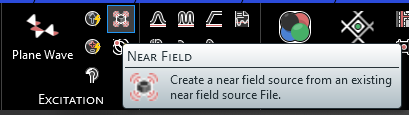
After the domain is defined, click
 Near Field within the Excitations section under the EMA3D tab in the ribbon.
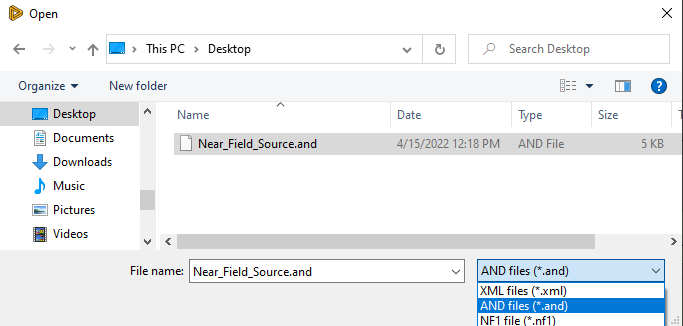
Immediately, a window will appear for users to select the file containing the source data. The default file extension is .xml, but users can select the drop-down arrow in the bottom right of the window to change to the .and or .nf1 extension. Navigate to the near field data file and click Open.
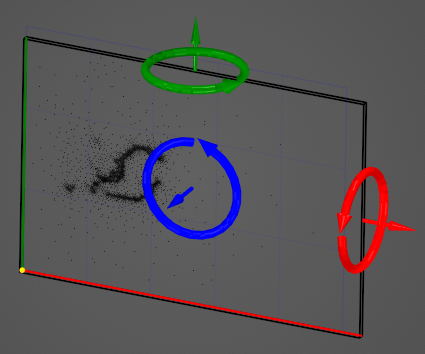
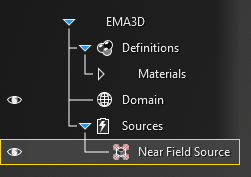
The near field source will be added to the model window and the Simulation Tree under the Sources node.
The positioning and rotation of the near field source can be adjusted using the directional arrows in the model window. Alternatively, the positioning, as well as other source properties, can be adjusted in the Properties Panel.
Click OK
 to complete the near field source definition.
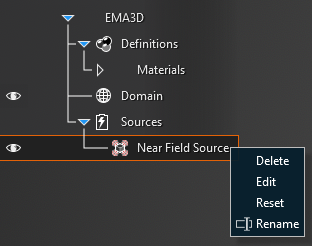
Adjust the definitions of the Near Field Source at any time by right clicking it within the Simulation Tree and selecting Edit from the pop-up menu. A yellow warning symbol may appear next to the near field source in the Simulation Tree. To view the warning, hover over the warning symbol. Examples of these warnings include the source file size being very large or the source grid size being small compared to the simulation domain mesh spacing.
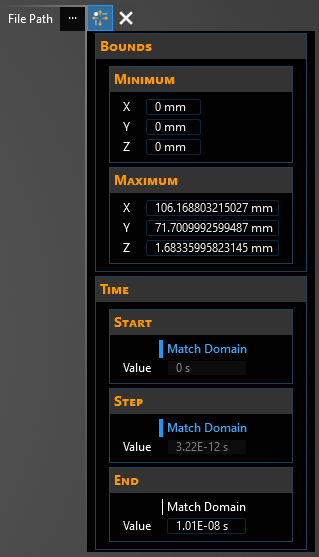
 General
Entry | Meaning |
|---|---|
File Path | Path to source input file. |
BoundsEntry | Meaning |
|---|---|
X | Minimum X location of the source. |
Y | Minimum Y location of the source. |
Z | Minimum Z location of the source. |
X | Maximum X location of the source. |
Y | Maximum Y location of the source. |
Z | Maximum Z location of the source. |
TimeEntry | Meaning |
|---|---|
Match Domain | Match the start time to the FDTD domain. |
Value | The simulation time the source turns on. The default start time matches the simulation end time. "Time - End" can be changed only if the field "Same as simulation" is set to "False" |
Match Domain | Match the time step to the FDTD domain. |
Value | The sample rate of the signal. The default step time matches the simulation step time. "Time - Step" can be changed only if the field "Same as simulation" is set to "False". The step can also be adjusted by using the "Skip" parameter |
Match Domain | Match the end time to the FDTD domain. |
Value | The simulation time the signal turns off. The default end time matches the simulation end time. "Time - End" can be changed only if the field "Same as simulation" is set to "False" |
EMA3D – © 2026 EMA, Inc. Unauthorized use, distribution, or duplication is prohibited.